Enterprise
Add a Custom Domain to Your Consumer Pages
Serve your QR trace pages from your own branded URL — like trace.yourbrand.com. This guide walks you through every step.
5 min setup
Enterprise plan required
Works with any DNS provider
Last updated: June 2026
What you'll need
- An active Meiver Enterprise plan
- A domain or subdomain you own (e.g. trace.yourbrand.com)
- Access to your domain registrar's DNS settings (GoDaddy, Cloudflare, Namecheap, etc.)
- About 5 minutes — DNS propagation may take up to 48 hours
In this guide
1Open Entity Settings → Consumer Page → Custom Domain2Register your domain in Meiver3Add TXT record at your DNS provider4Add CNAME record at your DNS provider5Verify & activate the domain6Set the domain as Primary7Troubleshooting & FAQs1
Open Entity Settings → Consumer Page → Custom Domain
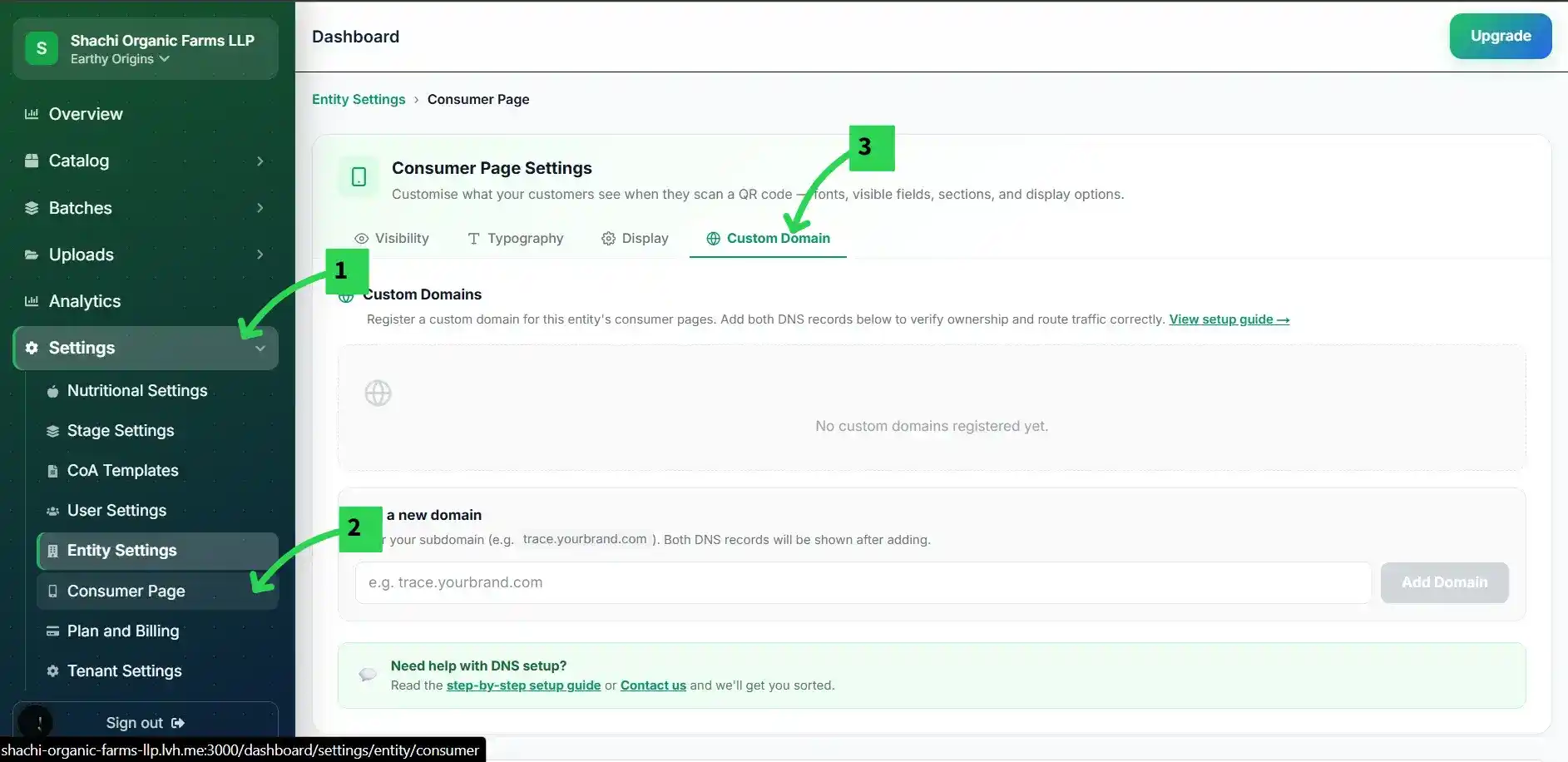
In your Meiver dashboard, click Entity Settings in the left sidebar. Select the entity you want to brand, then click Consumer Page. Inside the Consumer Page settings, click the Custom Domain tab.
You must be an Admin or Owner of the entity to manage custom domains.
2
Register your domain in Meiver
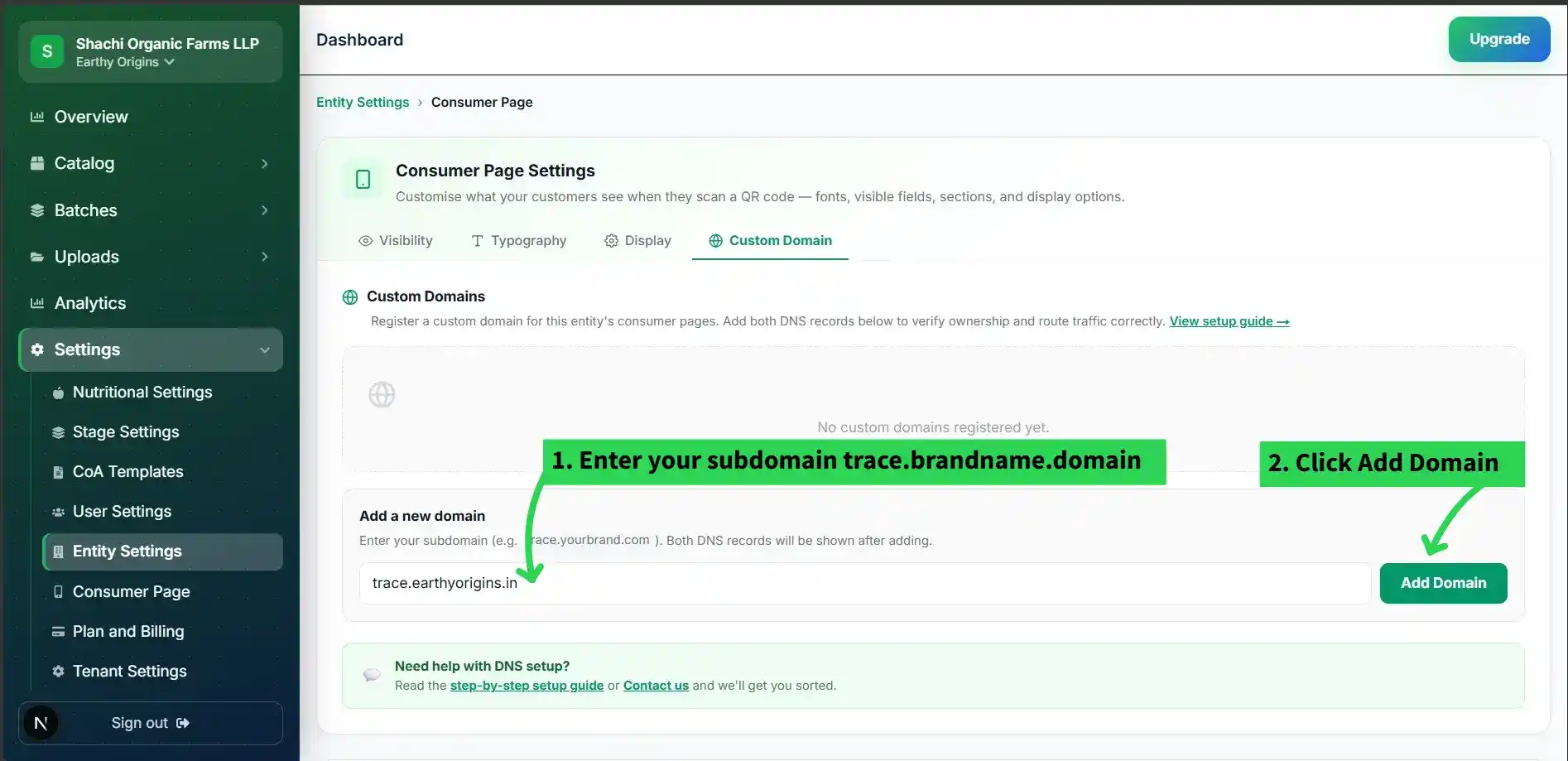
Scroll to the Add a new domain section at the bottom of the tab. Type your subdomain — for example
trace.yourbrand.com — and click Add Domain. Meiver will generate a unique verification token and display two DNS records you must add.Use a subdomain (e.g. trace.yourbrand.com) rather than a root/apex domain for best compatibility with CNAME records.
3
Add a TXT record at your DNS provider
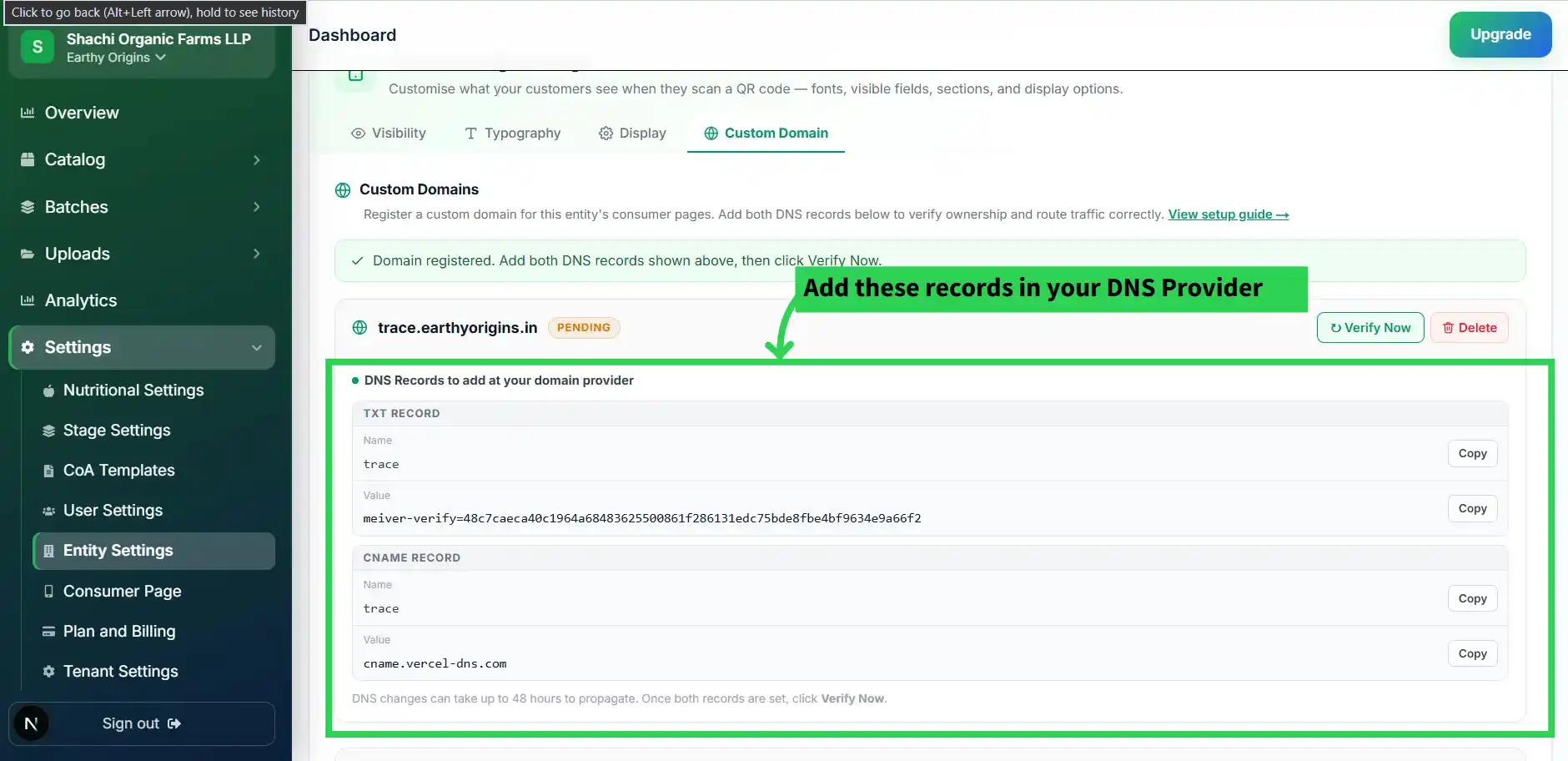
Log in to your DNS provider (Cloudflare, GoDaddy, Namecheap, etc.) and create a new TXT record exactly as shown. This proves you own the domain.
Replace
trace with your actual subdomain prefix. The token value is shown in your Custom Domain settings — click Copy next to the value.Do NOT include the full domain name in the Name field. Most registrars auto-append your domain — entering 'trace.yourbrand.com' would create 'trace.yourbrand.com.yourbrand.com'.
4
Add a CNAME record at your DNS provider
Still in your DNS provider, create a second record — a CNAME — that points your subdomain to Meiver's edge network. This routes all traffic for your branded URL to the correct consumer pages.
CNAME records cannot be set on an apex/root domain (e.g. yourbrand.com). Always use a subdomain. If you need apex support, use Cloudflare's CNAME flattening or a similar service.
If you already have an A record for this subdomain, you must delete it first — a subdomain cannot have both an A record and a CNAME record.
5
Verify, activate & wait for SSL
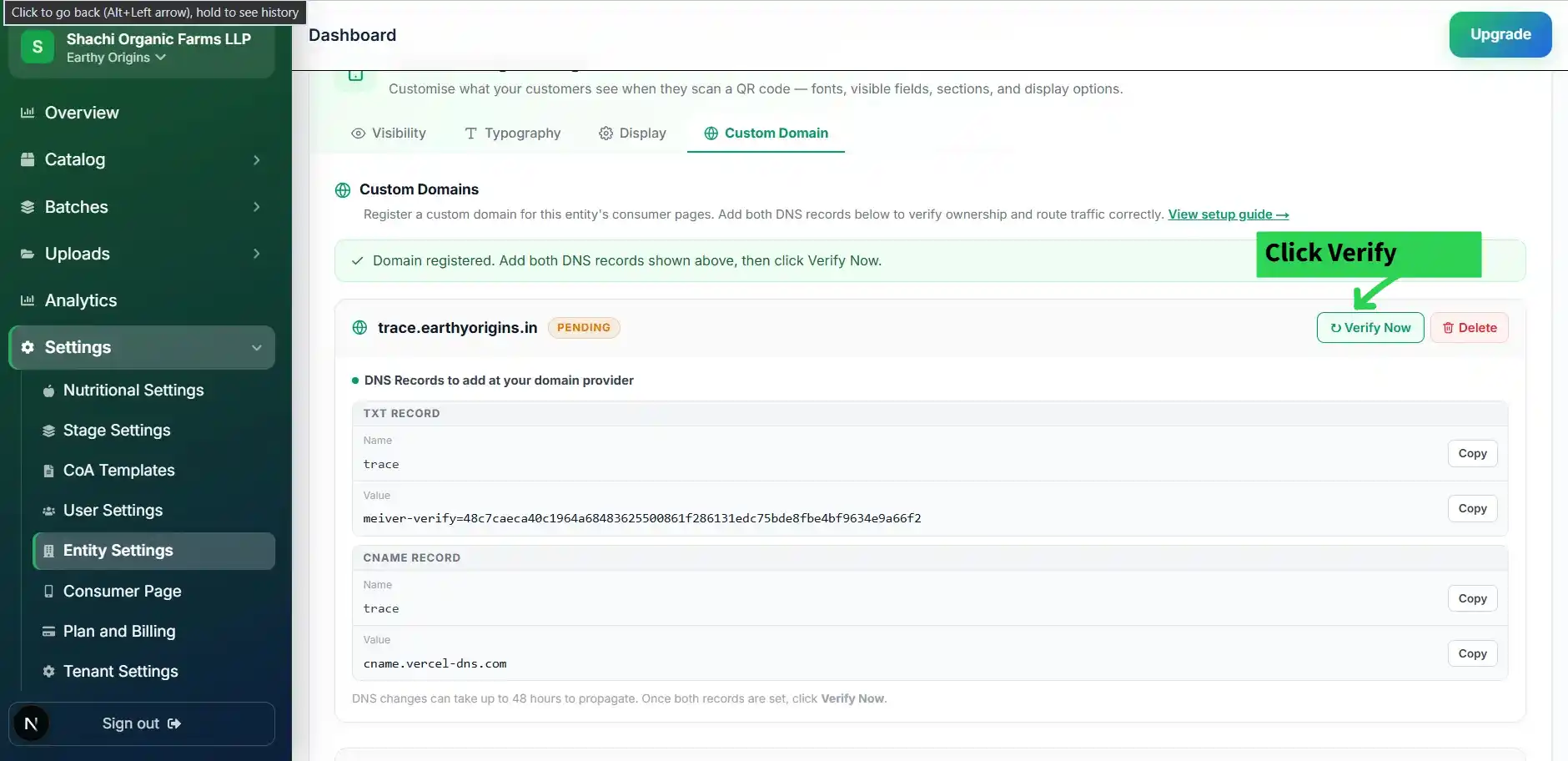
Go back to Meiver → Entity Settings → Consumer Page → Custom Domain. Find your registered domain card and click ↻ Verify Now. Meiver will check both DNS records. If both are detected, the status updates to ACTIVE. Once activated, SSL/HTTPS is provisioned automatically.
DNS propagation typically takes 5–30 minutes but can take up to 48 hours. If Verify Now fails, wait 15 minutes and try again. SSL provisioning takes an additional 5–10 minutes after activation.
6
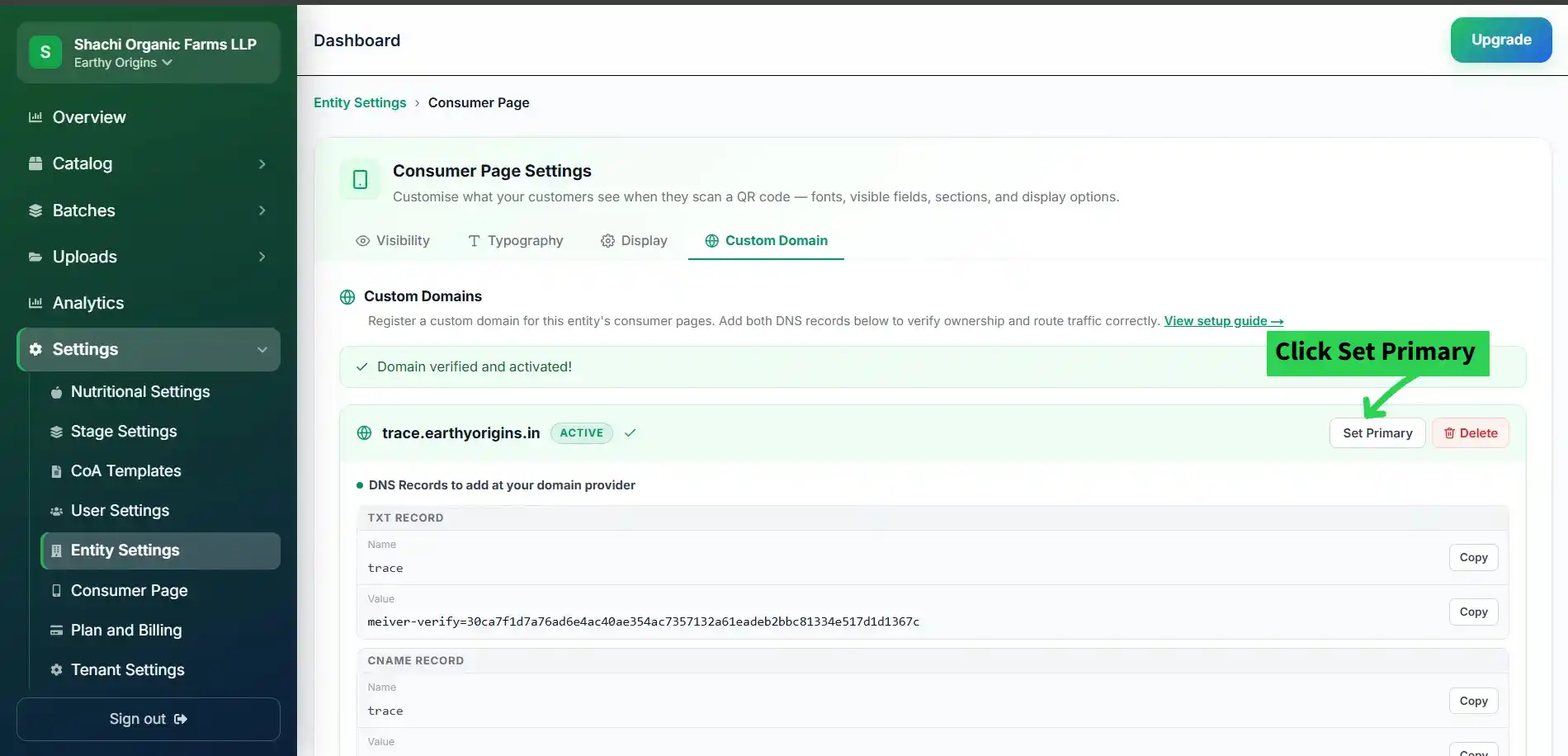
Set the domain as Primary
Once verified, click Set Primary on the domain card. Your consumer QR pages will now be served from your custom URL. Any QR codes you generate will use this domain automatically.
You can register multiple domains per entity, but only one can be Primary at a time. Switching Primary is instant — no propagation delay.
Important Notes
- Do not use your root domain like yourbrand.com — use a subdomain like trace.yourbrand.com.
- DNS changes may take time to reflect. Wait at least 15–30 minutes before clicking Verify Now.
- If a domain is already connected to another Meiver tenant, it cannot be used again.
- Custom domain access is available only on the Enterprise plan.
- SSL/HTTPS is provisioned automatically after verification — you do not need to configure it separately.
Troubleshooting
Domain not verifying?
Check the following before clicking Verify Now:
- CNAME record is added correctly and points to 6ad7c6bb7d67e0b6.vercel-dns-017.com.
- The domain has no extra spaces or typos.
- You are using a subdomain, not a root/apex domain.
- DNS propagation may take time — wait at least 15–30 minutes.
- Your domain is not already used by another Meiver tenant.
Verify Now says 'TXT record not found'+
The TXT record hasn't propagated yet, or was entered incorrectly. Double-check the Name and the Value (must start with 'meiver-verify='). Wait 15–30 minutes and try again.
Verify Now says 'CNAME not pointing to 6ad7c6bb7d67e0b6.vercel-dns-017.com'+
The CNAME record is missing, pointing to the wrong destination, or overridden by an existing A record. Log in to your DNS provider, delete any conflicting A record, and confirm the CNAME value is exactly '6ad7c6bb7d67e0b6.vercel-dns-017.com'.
My domain shows ACTIVE but the consumer page isn't loading+
It can take a few minutes after activation for SSL provisioning to complete. Wait 5–10 minutes and refresh. If the issue persists, ensure your CNAME was not set with 'Proxied' mode in Cloudflare — it must be DNS-only (grey cloud).
I can't find the Custom Domain tab+
The Custom Domain tab is only available on the Enterprise plan. If you're on Free or Pro, you'll see a lock icon instead. Contact our team to upgrade.
Can I use an apex/root domain (yourbrand.com)?+
Standard CNAME records cannot be used on apex domains. If your registrar supports CNAME flattening (Cloudflare does, under DNS-only mode), you can use an apex domain. Otherwise, use a subdomain like trace.yourbrand.com.
Does Meiver provision SSL automatically?+
Yes. Once both DNS records are verified, Meiver automatically provisions and renews a free SSL certificate for your custom domain. No configuration required.
What happens to my QR codes if I downgrade from Enterprise?+
Your custom domain will be disabled. Existing QR codes will continue to resolve through the default Meiver domain if fallback routing is enabled, so they won't break. Your custom domain becomes active again once you restore the Enterprise plan.
Quick reference — popular DNS providers
Each provider has a slightly different interface. Here's where to find DNS settings:
Cloudflare
Dashboard → yourdomain.com → DNS → Records
GoDaddy
My Products → DNS → Manage
Namecheap
Domain List → Manage → Advanced DNS
Google Domains / Squarespace
DNS → Resource records
Hostinger
Domain → Manage → DNS / Nameservers
BigRock / ResellerClub
Domain Control Panel → DNS